Technical review: 29 October 2026 · Office IT troubleshooting guide · Original diagrams and AI-generated photographic concepts
If an office device has working network connectivity but cannot open websites by name, investigate DNS—but establish the evidence first. Check the configured resolver, query the exact hostname, interpret the response and then test the website connection separately. An existing video call or cached webpage can keep working even while fresh name lookups fail.

This guide is for office IT teams, facility managers coordinating an incident and network support engineers. It focuses on name resolution, browser differences and internal DNS. If the device has no usable IP configuration, start with our DHCP troubleshooting guide. For wider cabling, Wi-Fi or congestion symptoms, use the network downtime investigation guide.
In this guide
1. Confirm what fails before calling it a DNS outage
Record the exact failing hostname, application, error message and time. “The internet is down” is too broad to guide a change. Does the issue affect a single laptop, one VLAN, VPN users or the entire office? Does every new website fail, or only one supplier portal? Test a known working client on the same network and keep its configuration as a comparison.
A browser error such as a name-resolution failure is useful evidence, but a generic timeout is not a DNS diagnosis. Existing applications can reuse established sessions; a speed-test application may contact already known endpoints. A gateway responding to ping establishes only part of the path. Failed ping is also inconclusive when ICMP is filtered.
| Observation | Useful next check | Avoid assuming |
|---|---|---|
| Only one laptop fails | Compare adapter DNS, VPN, browser settings and local overrides | The office ISP is down |
| One floor or VLAN fails | Compare assigned resolvers and client-to-resolver policy | Every access point is faulty |
| Public sites work; internal names fail | Check internal DNS view, suffixes and VPN name policy | A public resolver will fix it |
| DNS answers arrive; HTTPS fails | Investigate route, service port, proxy, TLS and application | More DNS cache flushing is the next step |
2. DNS lookup and website access are separate stages
DNS provides records associated with a name. A recursive resolver may answer from cache or obtain information through the authoritative DNS hierarchy. After an address is available, the application still needs a working network path and a successful service connection. A correct A record does not verify an IPv6 path, a TLS certificate, an HTTP response or an application login.
There can also be several naming layers on the endpoint: browser configuration, operating-system resolution, local overrides and VPN-specific rules. Their behaviour depends on the application and platform. A command-line tool and a browser can therefore disagree without either result being fabricated.
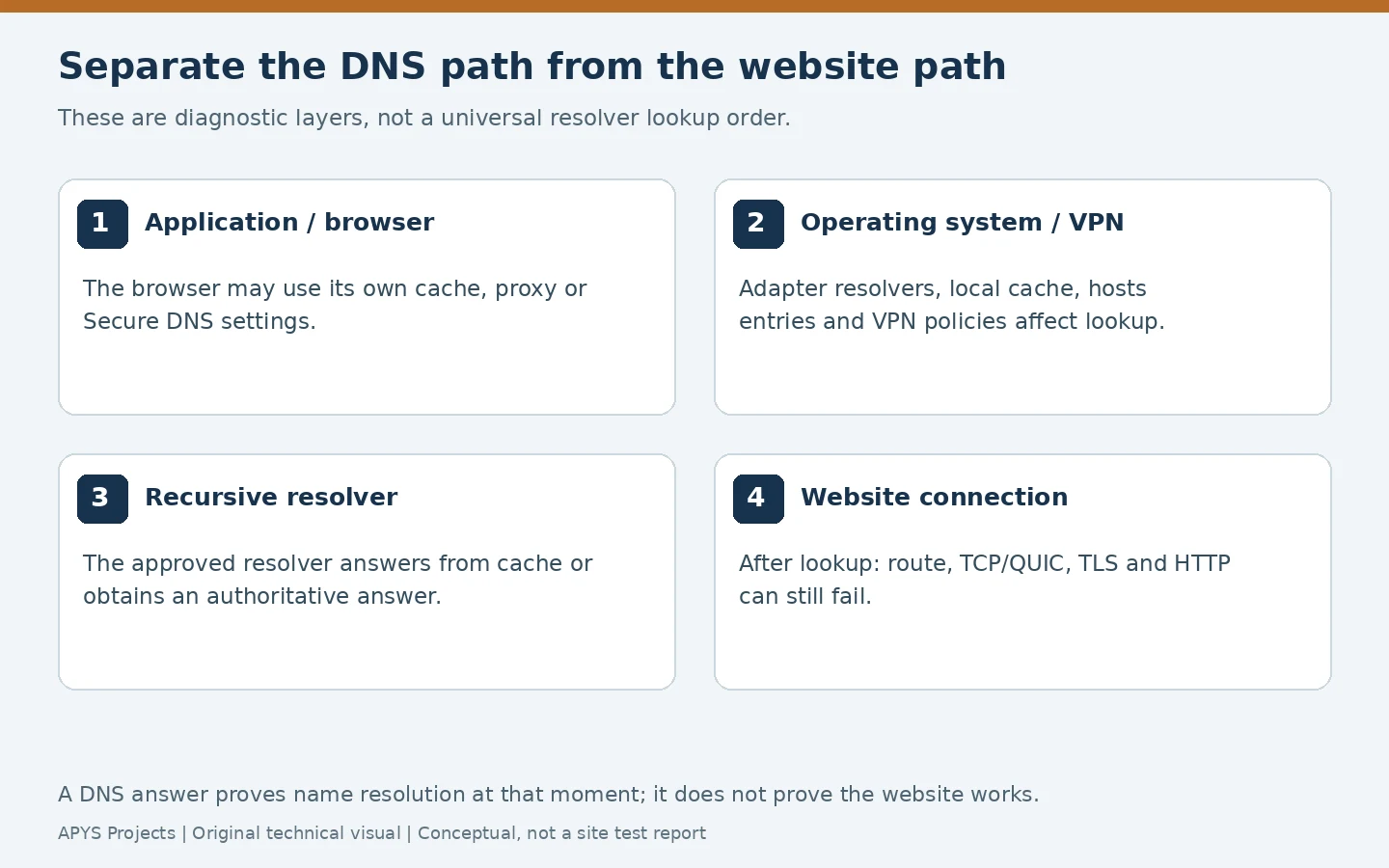
Opening https://IP-address/ is not a reliable replacement for opening a named website. Hosting often depends on the hostname for TLS and application routing. Keep the correct hostname in the test; otherwise an unrelated certificate or virtual-host error can obscure the original issue.
3. Capture configuration before changing DNS servers
On a Windows endpoint, collect the following in Command Prompt or PowerShell. These are inspection commands; their output can contain internal names and addresses, so share it only through approved support channels. Microsoft’s ipconfig documentation describes configuration and cache inspection.
ipconfig /all
ipconfig /displaydns
Get-DnsClientServerAddress
Get-DnsClientNrptPolicy -Effective
The last two commands use PowerShell. NRPT inspection is relevant to environments using Windows name-resolution policies; it is not a universal inventory of every VPN client’s DNS behaviour. Review the VPN product’s own diagnostics where applicable.
- Identify the active adapter rather than copying DNS settings from an unused Ethernet or virtual interface.
- Record IPv4 and IPv6 resolver addresses, lease source and any static overrides.
- Note the connection-specific suffix and the fully qualified internal hostname being tested.
- Record VPN state, browser Secure DNS policy and endpoint security software.
- Compare with one known working device before making a change.
A domain-joined computer may depend on internal DNS for directory services and private resources. Replacing its resolvers with a public service can make public browsing appear better while breaking internal operations. Configure approved internal resolvers to handle external lookups appropriately; do not mix unrelated DNS views as an improvised resilience strategy.

4. Query the exact name against a known resolver
The following PowerShell examples use www.example.com. as a documentation hostname and 10.20.0.10 as an illustrative internal resolver. Replace both with the hostname and approved resolver for the incident. A trailing dot specifies an absolute DNS name and avoids suffix expansion in that query.
Resolve-DnsName -Name www.example.com. -Type A -Server 10.20.0.10 -DnsOnly -NoHostsFile
Resolve-DnsName -Name www.example.com. -Type AAAA -Server 10.20.0.10 -DnsOnly -NoHostsFile
nslookup -type=A www.example.com. 10.20.0.10
Resolve-DnsName supports selecting a resolver, record type, DNS-only queries and bypassing the hosts file. These options create a focused diagnostic query; they do not reproduce every step of a browser’s lookup. nslookup queries the selected server and likewise should not be treated as proof that an application’s resolver path is healthy.
Repeat the same query against a second approved resolver, if one exists. A public-resolver comparison is appropriate only for a public name and where outbound queries are permitted. Do not send confidential internal hostnames to a public service. A blocked public lookup may simply be the intended office policy.
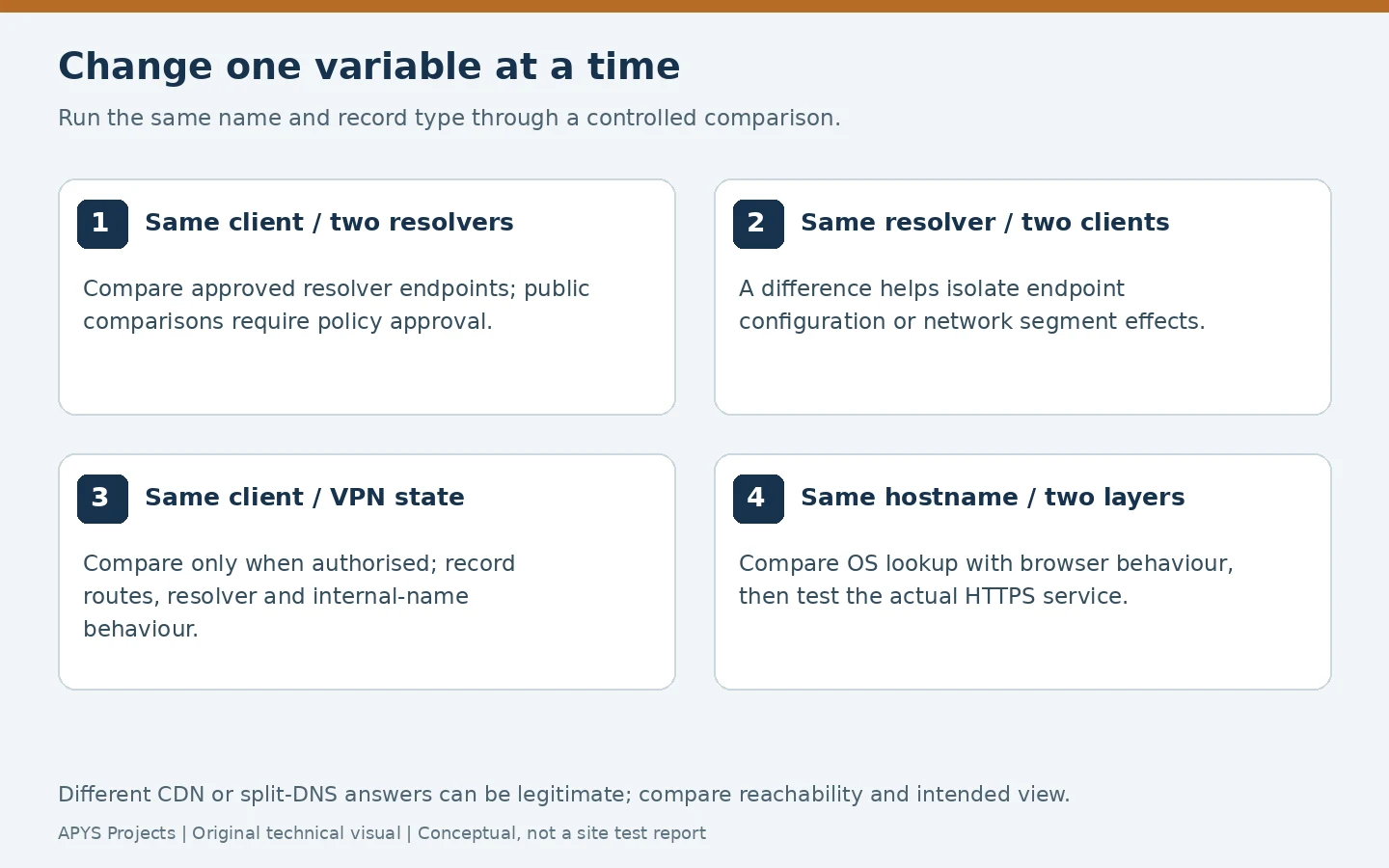
Separate name resolution from the service connection
Test-NetConnection -ComputerName www.example.com -Port 443
Test-NetConnection -ComputerName 192.0.2.10 -Port 443
The second line uses a documentation-only IP: replace it with a verified, authorised destination for a real test. A hostname test includes resolution, whereas an IP test avoids that hostname lookup. Test-NetConnection reports TCP connectivity; a successful result does not validate TLS, an HTTP transaction or HTTP/3 over QUIC. Continue with the actual application using its correct hostname.
5. Interpret NXDOMAIN, SERVFAIL and timeouts differently
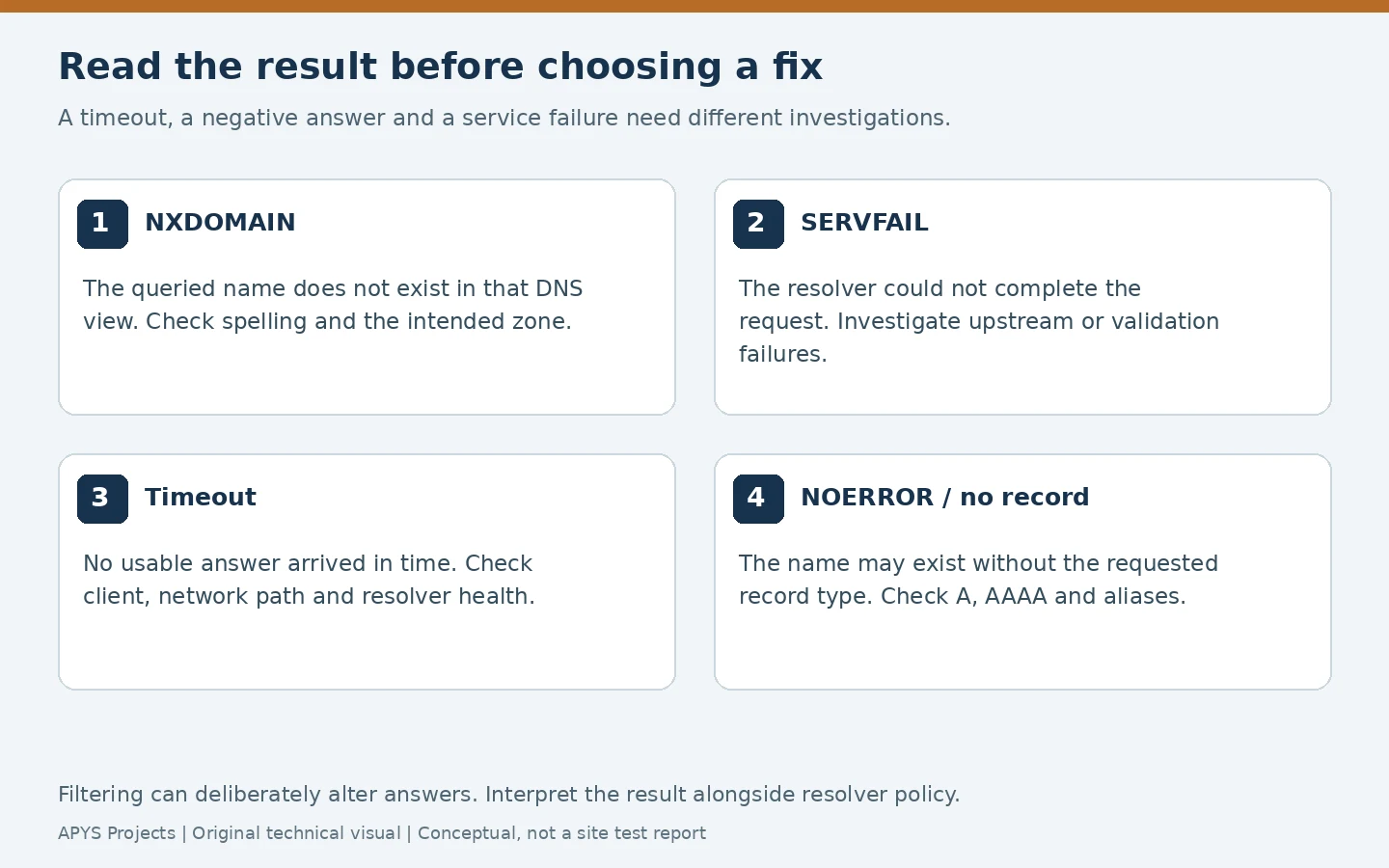
NXDOMAIN means the queried name does not exist in the responding DNS view. Check spelling, suffix expansion and whether the client used the intended internal resolver. Security filtering may deliberately synthesise a negative result, so review policy before treating it as a missing authoritative record.
SERVFAIL indicates that the resolver could not complete the request. Possible causes include an upstream problem, unsuccessful DNSSEC validation or an authoritative service problem. It does not identify which one occurred. A timeout means no usable response arrived within the test period; investigate the endpoint, route, filtering and resolver availability.
NOERROR with no answer of the requested type is different from NXDOMAIN. A name can exist without an AAAA record, for example. Inspect the requested type, aliases and response sections rather than declaring the entire domain missing. A REFUSED response can indicate the resolver will not serve that client or query.
Compare the intended DNS view and application behaviour rather than demanding identical addresses from every resolver. Split DNS deliberately exposes different information to different clients; CDNs can also return legitimate address differences. Save the response and timestamp so the DNS operator can reproduce the observation.
6. When command-line DNS works but the browser fails
Check whether the browser uses DNS over HTTPS, a managed secure resolver or a proxy. Mozilla documents enterprise controls for DNS over HTTPS; the practical lesson is to inspect policy rather than assume the browser follows the adapter settings. Use approved management controls for any diagnostic change and restore the intended configuration afterwards.
Also inspect browser-specific errors, extensions and site data. A proxy may perform resolution on another machine. If a private window behaves differently, that narrows the investigation but does not establish a resolver fault by itself. If DNS resolves correctly and a certificate warning follows, investigate time, interception, hostname and the certificate chain rather than bypassing the warning.
VPN and internal-name failures
Use the fully qualified internal name, such as portal.internal.example.com., with the organisation’s real domain substituted. Check the VPN’s assigned resolvers, routes to those resolvers, domain-specific policies and application path. A short name failing while its fully qualified name succeeds suggests suffix or name-selection behaviour. A private name returning a public address can be a wrong-view symptom, not an absent-record problem.
Do not disconnect a required VPN or alter managed DNS merely to obtain a successful screenshot. If an authorised comparison is necessary, record the VPN state and expected access before and after; restoration includes confirming that private resources still work.
7. Check DNS transport, upstream health and validation
Traditional DNS uses UDP and TCP. Check approved client-to-resolver paths and the resolver’s own forwarding or recursive path. A successful TCP test to port 53 alone does not prove a valid DNS response or working UDP. Microsoft provides client-side examples of configuration and intermediate-device faults.
Resolve-DnsName -Name www.example.com. -Type A -Server 10.20.0.10 -DnsOnly -NoHostsFile -TcpOnlyCompare a normal query with this TCP-only query and inspect logs or captures. A transport difference is evidence to investigate, not permission to open DNS broadly to the internet. Larger replies, fragmentation and middleboxes may expose problems that a small A-record answer does not.
When one public domain fails across several independent permitted resolvers, the domain operator may need to examine authoritative servers, delegation and DNSSEC. Google’s Public DNS troubleshooting guide describes domain-specific investigations and diagnostic responses. Do not disable validation office-wide to conceal a broken signed zone.

8. Worked incident: public browsing fails after a DHCP change
This is an illustrative incident, not an APYS client case or measured test result. New laptops on one VLAN cannot open public sites. Existing users on another floor continue working. The affected laptops have expected addresses and can reach the gateway; fresh DNS queries time out.
- Compare configurations. The affected scope advertises an old resolver address. The working scope advertises the current internal pair.
- Test without replacing the whole configuration. Query the current approved resolver explicitly from an affected client. Public and internal lookups succeed, and the named application works.
- Confirm the source. Review the affected DHCP scope and the retirement record for the old resolver. Do not infer this solely from a single successful alternate query.
- Correct narrowly. Update the affected scope through the approved change process. Refresh a pilot client’s lease only when safe; a lease operation can interrupt remote access.
- Verify the delivered settings. Confirm the renewed client received the intended resolvers, then retest internal names, public names and the business application.
The lesson is to repair the source of the incorrect setting. A manual public-DNS override on every laptop would hide that source, create configuration drift and potentially damage internal-name access.
9. Clear the appropriate cache and prove recovery
Capture the original result first. After correcting the cause, ipconfig /flushdns clears the Windows DNS client cache; it does not purge browser, application, recursive-resolver or authoritative data. If the wrong answer immediately returns, examine where it is being supplied rather than repeating the same flush.
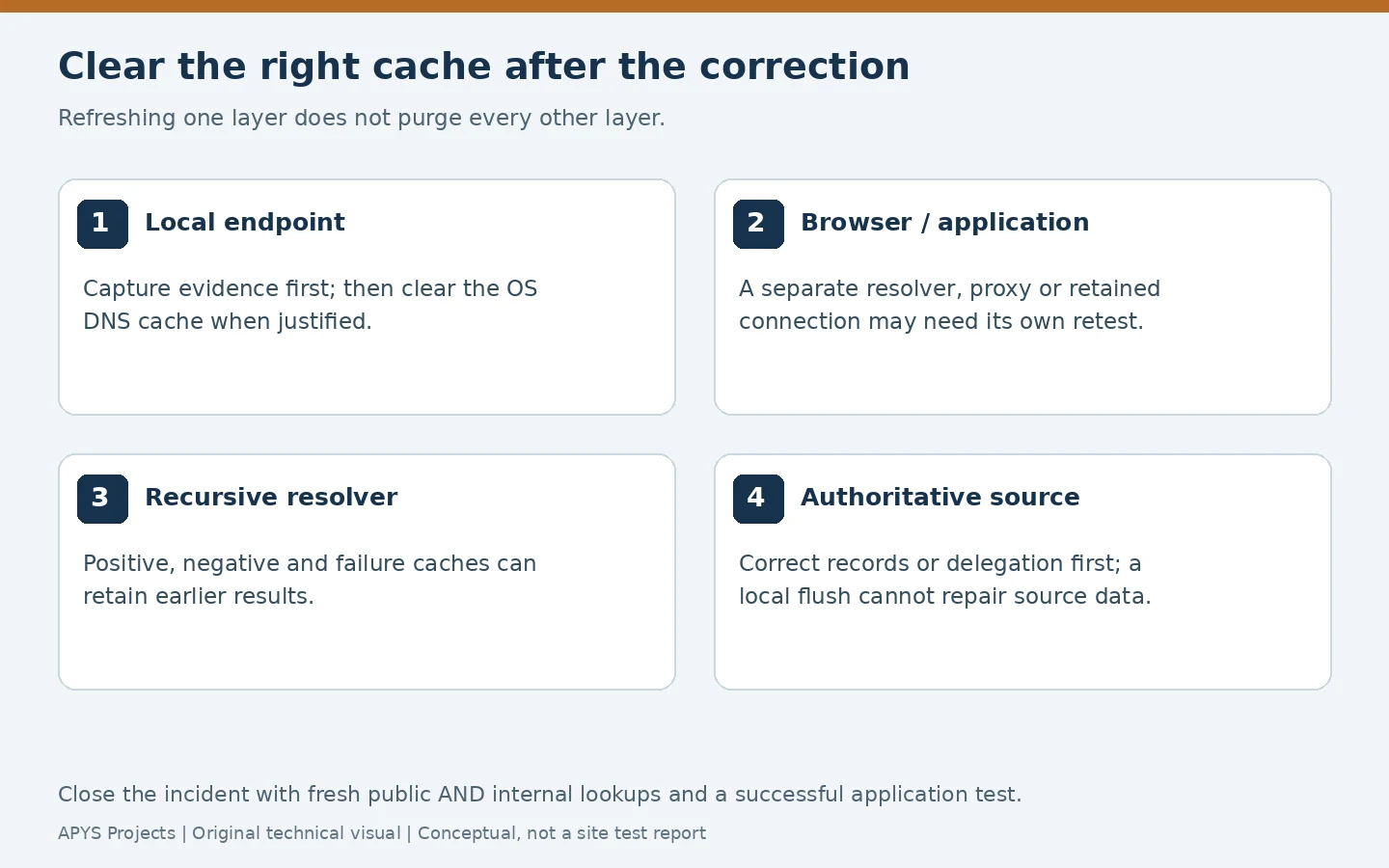
Negative answers and resolution failures can be cached too. RFC 9520 explains failure caching in recursive resolution. There is no universal “wait five minutes” fix: identify which layer retains the result and whether the source has actually been corrected.
- Confirm both configured resolvers individually handle the required public and private names.
- Test A and AAAA separately where relevant, then validate the actual application path.
- Repeat from an affected and a known working client, using fresh lookups.
- Check VPN and browser policy remain in their intended state.
- Remove temporary overrides, verify normal delivered settings and record rollback readiness.
- Observe beyond the first successful page load and record any intermittent failures.
What to include in the incident handover
Record affected devices or segments, the exact hostname and record type, configured resolver, timestamp, response/error, comparison result, root cause, approved change and post-change application test. Store captures securely: DNS logs can reveal internal services and user activity. A useful report makes the next incident faster to investigate without exposing confidential network information.
Worked negative-cache timeline: why a local flush may not help
Consider a simple authoritative NXDOMAIN response with no alias chain. Assume its SOA TTL is 600 seconds and SOA MINIMUM is 300 seconds. Under RFC 2308’s negative-caching rule, the response’s negative TTL is the smaller value: 300 seconds. This is an illustrative DNS example, not a five-minute rule for all failures.
| Time / action | Illustrative state | Useful conclusion |
|---|---|---|
| 10:00: resolver caches NXDOMAIN | Original negative TTL 300 seconds | The resolver holds a negative answer. |
| 10:01: operator creates the correct authoritative record | A direct authorised check sees the new record | Existing recursive caches are not retrospectively rewritten. |
| 10:02: Windows cache is flushed and the same resolver is queried | If it retained the original entry, about 180 seconds remain | A negative answer can return from the resolver even after the endpoint cache is cleared. |
| Around 10:05 under these assumptions | Original entry expires; a fresh successful lookup can obtain the correction | Retest the exact name/type and application; do not promise universal propagation at this time. |
The countdown example assumes ordinary TTL expiry without other resolver policies or continuing upstream errors. A resolver that cached the response later has a different timeline. Browser/application caches and DNS-over-HTTPS may follow another path. SERVFAIL or transport-failure caching is a different case covered by the existing RFC 9520 reference; do not apply an NXDOMAIN SOA calculation blindly to it.
Use a comparison that isolates the layer
Record the exact fully qualified name, record type, query time, resolver address, response/error and remaining TTL where available. Compare a direct approved resolver query with the endpoint’s normal lookup and the actual browser, keeping VPN/proxy/Secure DNS state visible. An explicit -Server query is a diagnostic path; it does not prove every application used that resolver. Never publish confidential internal names or captures with the incident summary.
After the correction, verify required internal names and public names through both approved resolvers, then the real application with its correct hostname. Remove temporary endpoint overrides through the approved change process and confirm DHCP/VPN-delivered settings remain correct. Record which layer was actually corrected, which cache still held the old result and how recovery was demonstrated. A successful A lookup does not clear a separate IPv6, TLS, proxy or application fault.
Frequently asked questions
Should I change every computer to 8.8.8.8?
Use the organisation’s approved DNS design. A permitted public lookup can be a comparison for a public name, but a blanket change may bypass filtering or break private services. Repair the underlying resolver, DHCP or VPN configuration.
Why does restarting the router help only temporarily?
A restart can change several conditions at once, including connections and cache state. Temporary improvement does not identify the fault. Capture the resolver and response evidence when the problem returns.
Does a fast ping prove DNS is fast?
No. Ping measures ICMP behaviour, not a DNS transaction. Measure an actual query, recording the resolver, name, record type and whether the result was cached. Avoid diagnosing a service from one sample.
Do I need new cabling when websites do not open?
Only if evidence identifies a physical-link problem. A clean link and a reproducible resolver-specific failure call for a DNS-path investigation before replacing cabling.
Need help investigating an office DNS fault?
APYS Projects provides networking services across India. Share the affected location, device count, exact error and permitted diagnostic evidence through our contact page. Review the office firewall guide for policy context and the network AMC scope guide for ongoing operational responsibilities.
Editorial review: 29 October 2026. Worked values are illustrative, not APYS site measurements. Use selected-model documentation and the approved project criteria for actual implementation.
Sources and technical references
Related APYS services and tools: Office networking service scope