When Wi-Fi connects but the device cannot obtain an IPv4 address, check the client, its VLAN path and the DHCP service before replacing the access point or upgrading the internet plan. Wireless association and address assignment are separate stages. A working radio connection does not prove that DHCP messages can reach the correct server.
This guide is for office IT administrators and support teams diagnosing missing or incorrect IPv4 leases. Start with one affected device and a comparable working device. If the address, gateway and DNS settings are already correct, move to routing, DNS, firewall or application checks in our office network downtime guide.
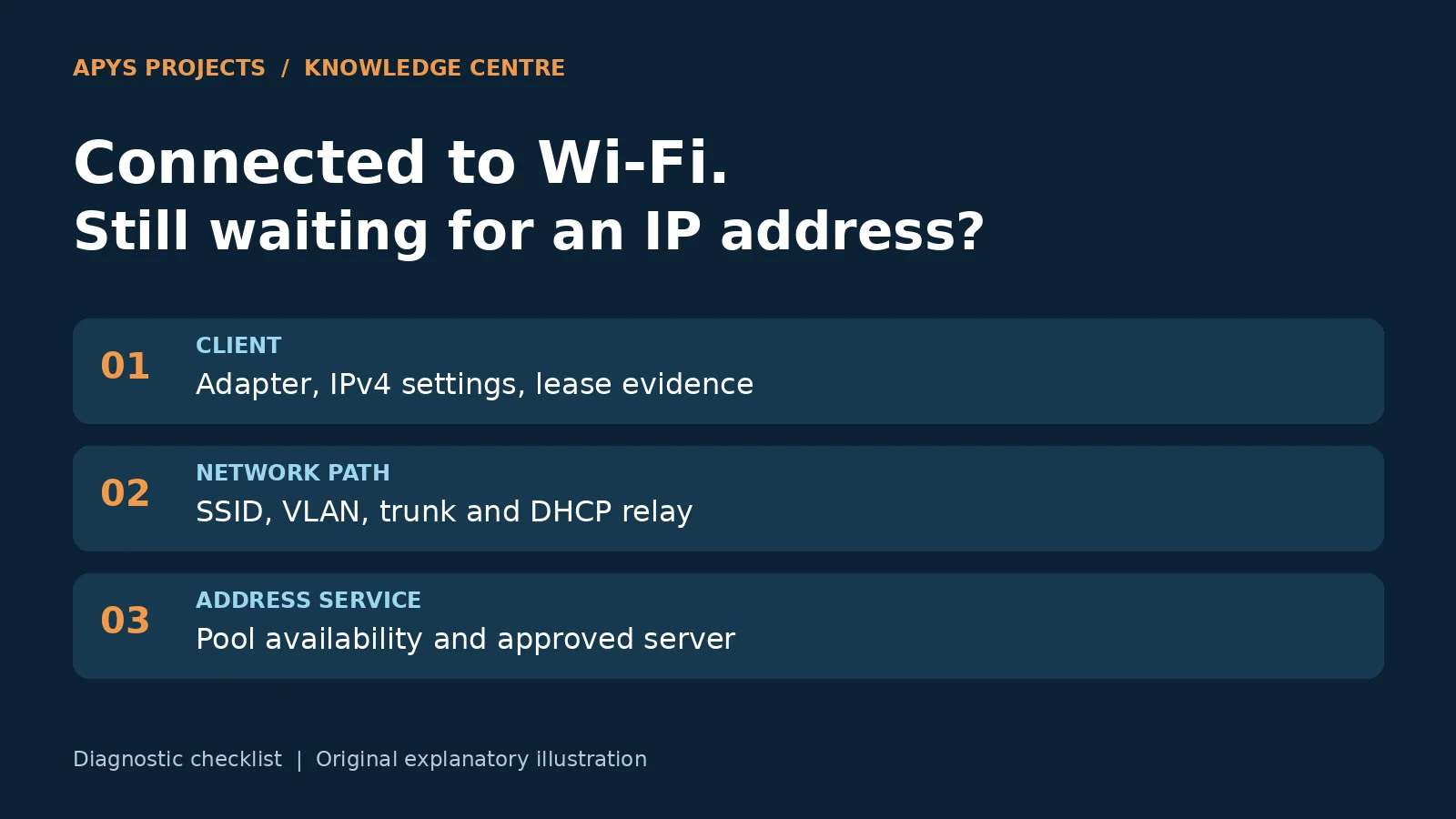
1. Record the address evidence first
On Windows, run ipconfig /all and identify the adapter actually carrying the connection. Record whether DHCP is enabled, the IPv4 address, subnet mask, gateway, DNS servers, DHCP server and lease times. VPNs and virtual adapters can otherwise make the wrong interface look like the problem.
An automatically assigned 169.254.x.x address on a Windows IPv4 DHCP client can indicate that a usable DHCP lease was not obtained. It does not identify the failed component. IPv6 may still function, so describe the IPv4 symptom precisely rather than declaring every network service down.
Capture the failure time, location, SSID or outlet, adapter identity and exact error. Compare a working client on the same intended network. Do not copy its IP address: that can create an address conflict and obscure the original fault.
2. Use the affected group to choose the next check
- One device: compare its adapter and DHCP configuration with a known-good client using the same connection.
- One SSID: inspect that SSID’s network assignment and the forwarding path used by the installed wireless platform.
- One floor or switch: check the access switch and uplink configuration against the documented design.
- New arrivals fail while existing users work: investigate address availability and fresh lease transactions; existing leases can temporarily hide a service problem.
- Unexpected subnet or gateway: investigate wrong network placement or an unexpected DHCP responder.
These are investigation priorities, not definitive diagnoses. Keep the device and test location consistent while changing one variable at a time. A short incident record is more useful than several simultaneous reboots.
3. Check the local client without resetting everything
Confirm that the adapter is enabled and that automatic IPv4 configuration is intended for this device. Check the Windows DHCP Client service, relevant adapter driver and DHCP client event logs. A physical link problem or a local filter can prevent the exchange before the server sees it.
After saving the evidence, use an approved test device to reproduce the issue with a lease renewal, such as ipconfig /renew. Releasing an address disconnects that adapter; do not release the management connection of a remotely administered machine without another access route. A full network reset is a later corrective action with side effects, not the first evidence-gathering step.
4. Verify the VLAN and relay path
Write down the intended client subnet, VLAN, gateway and address server. A familiar Wi-Fi name does not establish that the endpoint reached the correct VLAN. Check the platform’s actual forwarding mode: traffic may be locally bridged at the AP or carried through a controller or tunnel.
For locally bridged designs, compare the SSID mapping, AP switch port and allowed VLANs across the uplink. For tunneled designs, follow the path to the device that places the client into its network. Use configuration and forwarding evidence rather than changing trunk settings by trial and error.
When the IPv4 DHCP server is on another subnet, verify the configured relay or IP helper on the appropriate gateway. Check its destination, the scope corresponding to that client network and the permitted return path. A successful ping between infrastructure devices does not by itself prove that the DHCP exchange completes.
5. Inspect address availability and server decisions
Check whether the correct scope is active and has usable addresses. Review exclusions, reservations, conflict records and policies. For Windows DHCP, also check service health and authorization where the deployment requires it. Confirm that manually assigned infrastructure addresses are accounted for in the address plan.
A planning example: a pool contains 120 addresses, 15 are excluded and 100 usable addresses are already leased. Only five remain under those assumptions. That is a capacity warning, not proof of the current failure. Verify the server’s actual statistics and policy decisions before enlarging a pool or changing leases.
Increasing a range without checking the subnet and static assignments can introduce conflicts. Deleting all leases can also disrupt diagnosis. Record the original settings and select a correction that fits the approved addressing plan.
6. Check for an unintended DHCP server
A small router connected during a desk move may answer address requests if its DHCP service remains active on the office LAN. Compare the assigned server, gateway and subnet with the approved design. Where evidence suggests an unexpected responder, trace its attachment through the managed network before disconnecting a device.
Multiple DHCP servers are not automatically a fault: a documented redundant design may use more than one. The question is whether the responses and settings are expected. Do not remove a production server simply because a packet capture shows two offers.
Supported switches can use DHCP snooping to restrict server responses on untrusted ports. Plan the trusted server-facing path for the exact model and topology. An incorrect trust configuration can block the legitimate service, so introduce it with a backup, a controlled test and a rollback route rather than enabling it blindly across production.
7. Capture the transaction when configuration checks are inconclusive
A fresh IPv4 allocation commonly follows Discover, Offer, Request and Acknowledgement, often called DORA. Renewals and other client states do not always start with Discover. Match the transaction, client identity and time before interpreting a missing message.
With authorization, capture at the affected client and at the server or suitable network observation points. Microsoft recommends comparing both sides. If the client sends a Discover that never reaches the server, investigate the intervening path. If the server sends an Offer that the client never receives, investigate the return path and filtering. One capture alone cannot prove which intermediate device dropped traffic.
Record server refusals and client responses as well as absent messages. A completed acknowledgement is a useful milestone; follow it with inspection of the applied settings and the original application test. Keep packet captures in the support record with access appropriate to the information they contain.
Illustrative case: office SSID works on one floor only
Suppose the same test laptop receives an expected address downstairs but self-assigns an IPv4 address upstairs. Other upstairs devices reproduce the symptom. The address pool still has capacity. These observations make the upstairs forwarding path a sensible next focus.
If configuration comparison shows that the locally bridged client VLAN is missing from the upstairs uplink, restore that specific approved VLAN and retest. Record the before-and-after configuration and lease evidence. This is a hypothetical diagnostic example, not an APYS project result; a different wireless forwarding mode would require a different path investigation.
Close the incident with a repeatable verification
- Confirm a fresh lease in the intended subnet and the expected gateway and DNS settings.
- Check for an unexpected DHCP server or duplicate address symptom.
- Test the required local and internet applications.
- Reconnect and test another affected endpoint.
- Document the cause, exact change, test time and rollback information.
- Update the VLAN, IP and port records in the network handover pack.
A random static address or daily router reboot may conceal the fault while leaving the next device unable to connect. For ongoing support, include address availability and configuration records in the agreed network AMC scope.
Need help tracing an office address-assignment fault?
Share the affected SSID or outlet, failure times and a redacted description of the address evidence through the APYS Projects enquiry page. A useful assessment should connect the symptom to a documented cause and a retested correction.
DORA evidence matrix: find the last confirmed stage
This matrix concerns a fresh IPv4 allocation. Renewal, rebinding and remembered leases can follow different paths. Match timestamp, transaction ID and client identity. An absent packet is meaningful only when the capture point and filter could observe it.
| Observed evidence | Next focus | What it does not prove |
|---|---|---|
| Client sends Discover; server-side capture does not see it | VLAN, AP forwarding, relay and filtering path. | The exact device dropping traffic. |
| Server receives Discover but sends no usable Offer | Matching scope, available addresses, policies and logs. | That a bigger range is the correct fix. |
| Server sends Offer; client does not receive it | Return path, relay and permitted responses. | Emission is not delivery. |
| Offer arrives but no completed ACK exchange follows | Selected server, Request, NAK/refusal and return delivery. | An Offer is not a completed lease. |
| ACK arrives and settings apply; application still fails | Gateway, DNS, routing and application. | Do not keep calling it missing DHCP. |
Worked pool example: count the configured range, not the subnet label
A hypothetical 10.0.30.0/24 guest subnet has a pool from 10.0.30.50 through 10.0.30.169. That inclusive range contains 169 − 50 + 1 = 120 addresses. If 15 within it are excluded and 100 remaining addresses are leased, five remain under these assumptions. Reservations, policies, declined addresses and server accounting can change the usable count; verify live scope statistics.
Thirty visitors with two devices each represent 60 potential new leases, exceeding those five remaining addresses. This is a planning warning, not proof that every arrival needs a fresh lease. Reuse and turnover matter. Shortening the lease is not an immediate cure, and enlarging a range beyond its subnet or into static assignments can introduce conflicts.
Start with read-only evidence: ipconfig /all, the correct adapter’s DHCP event logs, intended VLAN and scope status. Save these before an approved renewal. Release/reset, relay, snooping or pool changes need the site’s change process and a restoration path; they are unnecessary merely to collect initial evidence.
After correction, verify a fresh expected lease and server identity, then gateway/DNS and the original application. Reconnect and compare another affected device. Retain before/after configuration and transaction records. See guest WiFi acceptance for visitor-only faults.
Editorial review: 28 October 2026. Numerical examples are illustrative, not APYS project measurements.
Technical references
- Microsoft: troubleshoot problems on the DHCP client—client checks, logs and capture collection.
- Microsoft: DHCP troubleshooting guidance—scope, relay and transaction comparison.
- Microsoft: DHCP troubleshooting overview—IPv4 assignment and APIPA context.
- RFC 2131: Dynamic Host Configuration Protocol—allocation, relay and client states.
- Cisco: DHCP trusted interfaces—model-specific snooping trust guidance.
Scope: IPv4 DHCP diagnosis. Commands and configuration controls vary by operating system, switch, firewall and wireless platform. Follow the documentation for the installed equipment.
Related APYS services and tools: Office networking troubleshooting and service scope