Consider a hypothetical office where the complaint is familiar: “The network is slow, so we need faster internet and new Wi-Fi.” A quotation arrives, the equipment is replaced, and a month later the same complaint returns. The cause was never the internet circuit or the access points. It was an unmanaged switch daisy-chained behind another switch, a backup job saturating one link, and cabling that nobody had tested since it was installed.
An upgrade built on assumptions can spend money on the wrong layer. An audit is the evidence-gathering step that tells you which layer is actually limiting the office, which equipment genuinely needs replacing, and which problems a configuration change or a re-termination would fix. This article sets out what to inspect, in what order, what evidence to keep, and how to turn findings into an upgrade decision.
It is written for office owners, facility managers, IT administrators and project consultants. It is a practical audit framework, not a security assessment or a substitute for manufacturer documentation. Where the right limits depend on your equipment, the article says so.
What a network audit is, and what it is not
A network audit is a structured inspection of the network as it exists today. It answers four questions: what do we have, what condition is it in, how is it configured, and how does it perform under real use. It produces an inventory, a set of rated findings with evidence, and a recommended action list.
It is different from three things people often confuse it with:
- Troubleshooting chases one symptom. An audit looks at the whole network, including parts that are not yet failing.
- A penetration test actively attempts to break in. An audit reviews configuration and exposure without exploiting anything. Penetration testing is a separate, specialist engagement.
- A design proposes a future network. An audit documents the present one, so the design starts from facts.
For ongoing downtime problems, see our network downtime guide. This article is about the inspection you do before spending money on an upgrade.
Terms used in this guide
- Inventory: a record of every network device with make, model, serial number, firmware, location, role and support status.
- Baseline: measurements of normal behaviour (utilisation, latency, errors) taken over a representative period, used to judge whether a change helped.
- 95th percentile utilisation: the level that utilisation stays below for 95% of the measurement intervals. It is calculated from interval samples; a five-minute average can hide short congestion bursts. Retain peaks, drops and application timestamps as well, and state the sampling interval. It is not a pass/fail standard.
- CRC / FCS errors: frame errors counted on a switch port, commonly associated with bad cabling, bad connectors or duplex problems.
- Duplex mismatch: one end of a link operating half-duplex while the other is full-duplex, usually from a manual setting on one side or failed autonegotiation.
- Spanning tree (STP): the protocol that prevents switching loops. The root bridge is the switch all paths are calculated from.
- End of support / end of life: vendor lifecycle milestones are different. Record end of sale and last supported software/security-update dates separately; do not assume end of sale means support has already ended.
- Finding: a recorded observation with evidence, severity and a recommended action.
Step 0: Agree scope, permission and safety first
Before touching anything, settle the following in writing. NIST assessment guidance supports planned scope and methods; it does not make this practical capacity audit a penetration test. [5]
- Authorisation. Only audit networks you own or have written permission to assess. Active scanning and traffic capture on a network you do not control can breach policy or law.
- Scope. Which sites, floors, VLANs, devices and cloud services are included, and which are not.
- Access level. Prefer read-only accounts for devices. Avoid changing anything during the inspection phase.
- Timing. Agree when intrusive tests (throughput tests, scans) may run, and avoid business-critical hours.
- Backups. Save the current configuration of every managed device before the audit starts. If a device is already unstable, a backup may not be possible; record that as a finding.
- Privacy. Capture traffic metadata and counters rather than content. Do not retain personal data you do not need.
Step 1: Build the inventory and the real topology
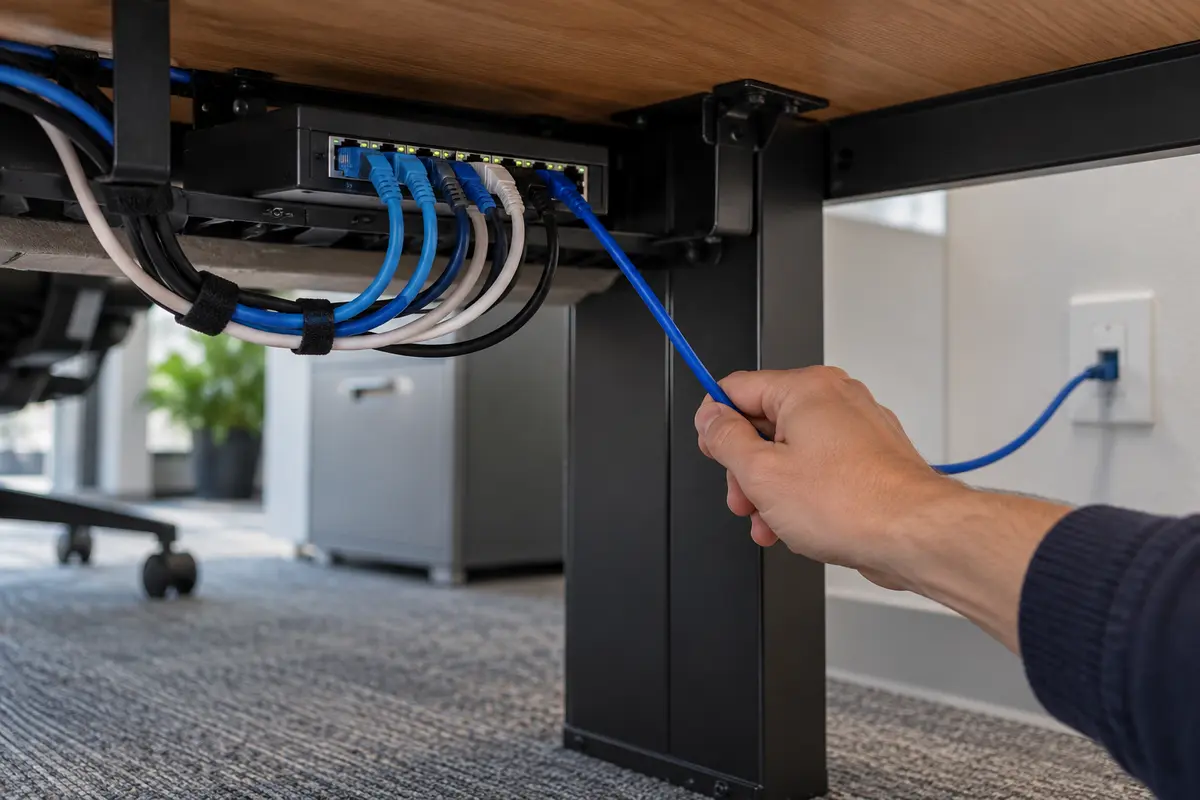
An office may have an outdated network diagram, or none at all. Build the inventory from the devices themselves, not from memory or old invoices.
For every device, record:
- Make, model, serial number and role (firewall, core switch, access switch, access point, UPS).
- Physical location and the cabinet or rack position.
- Firmware or software version, and the vendor’s end-of-support status for that model.
- Management method (web, command line, cloud) and who holds the credentials.
- Licence or subscription expiry dates, and warranty status.
- Power source (which UPS or outlet).
Then draw the topology as it is physically connected. Trace uplinks between switches port by port. Pay particular attention to:
- Unmanaged switches hidden under desks, in meeting rooms or in ceiling spaces. They usually lack remotely accessible per-port counters. A neighbour may reveal their presence, but discovery cannot be assumed to inventory them completely.
- Daisy chains where one switch feeds another feeds another, which stack contention and failure risk on single links.
- Consumer routers acting as extra access points or switches, which may create a second network or a second NAT layer.
Discovery tools such as management consoles, neighbour discovery protocols and address-table views help, but they only find what is reachable and what supports them. Physical inspection of the cabinets is what catches the rest. If you run an active scan to find devices, do it only within the agreed scope and permission.
Step 2: Inspect the physical layer and cabling
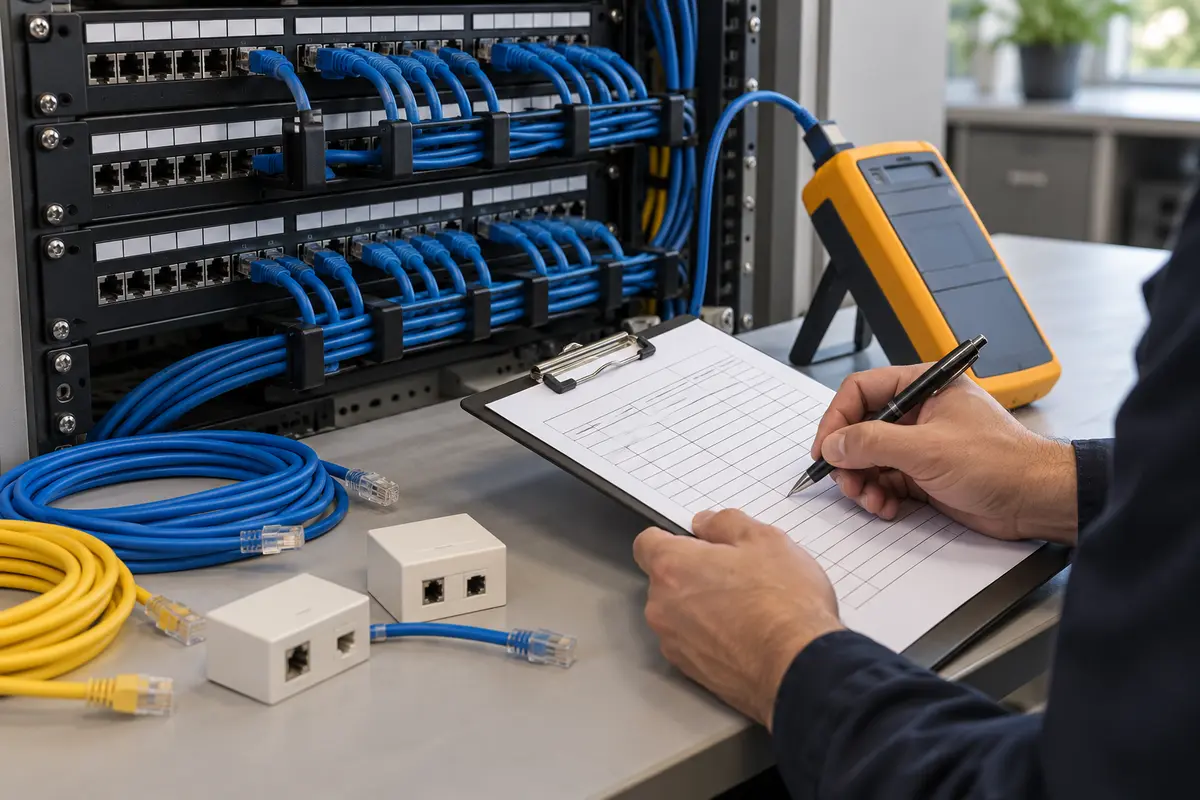
Cabling faults produce some of the least visible and most persistent problems, and cabling is the layer most expensive to replace. Inspect before deciding anything about speeds.
Cabinet and patch area
- Cabinet temperature, ventilation and dust. Check measured conditions against the installed equipment’s operating limits; a closed cabinet alone does not prove a thermal fault.
- Cable strain, tight bends, over-tightened ties or cables hanging from connectors.
- Patch cord quality, length and condition. Damaged latches and cracked boots are common.
- Labelling: do the port labels in the cabinet match the outlet labels in the room, and do both match any documentation?
- Free ports, free rack units and free power outlets, which determine how easily you can grow.
Identify the installed cable
Upgrade options depend on what category of cable is actually in the walls. Check the jacket print on any accessible cable, the markings on outlets and panels, and any installation records. Printed markings are a clue, not proof; the cable and connectors together form the link, and only testing shows what the installed link can do.
Test a sample, or all links if the upgrade depends on it
If you intend to move to faster equipment, test the links against the standard for the application you intend to run. The difference between a continuity test and certification is covered in our Fluke testing article. For an audit, a practical approach is:
- Agree a sample that includes the longest runs, the oldest runs and links serving critical devices.
- Record the exact limit set, permanent-link or channel setup, adapters, tester model, calibration status and native result for each link. Agree requirements with the client and cabling manufacturer before testing. [3]
- If the sample shows a high failure rate, extend testing to all links before relying on the cabling for an upgrade.
A sample is evidence about the sample. It does not certify the links you did not test.
Step 3: Check switching health
For each managed switch, review the following. Command names and counter names are vendor-specific, so use the vendor’s documentation for your models.
Port status and errors
- Negotiated speed and duplex on every active port. A gigabit-capable pair negotiating at 100 Mbps needs investigation of cable pairs, patch leads, port settings and endpoint capability. CRC counters can indicate physical faults or interface problems; drops/discards may instead indicate congestion. Compare rising counters at both ends rather than declaring a cable failure from one number. [1]
- Error counters (CRC/FCS, input errors, discards). Note whether the counters are rising during the audit, not only their totals, because old counts may be historical.
- Ports flapping up and down, visible in logs.
Uplinks and utilisation
- Utilisation of every uplink over at least several working days, including backup windows. Record the 95th percentile and the maximum.
- Whether file servers, NAS devices or backup targets sit behind a constrained link.
- Link aggregation settings, if used, and whether members are correctly bundled and carry traffic over representative flows. Hashing can leave one member lightly used; equal utilisation is not required. A single flow ordinarily remains limited to one member link. [2]
Spanning tree and VLANs
- Which switch is the root bridge, and is that the switch you would choose? An old edge switch becoming root by default is a common finding.
- Frequent spanning tree topology changes in the logs, which suggest unstable links or loops.
- VLAN lists on trunk links: are the VLANs you expect carried everywhere they should be, and nowhere they should not?
- Unused ports: are they shut down or assigned to an isolated VLAN, or left open on the main network?
PoE
- Usable PoE budget versus reserved/negotiated allocation and current measured draw, per switch. The budget is a model-specific figure from the datasheet. The calculation method is covered in our PoE power budget guide.
- Any ports that have shut down or reset because of overload.
Firmware and management
- Firmware version against the vendor’s current release and security advisories for that model.
- Default or shared credentials, unencrypted management protocols, and management reachable from unauthorised guest or staff paths. Test the actual firewall/ACL policy; authorised administrator access should remain available.
- Time synchronisation and logging: do device clocks agree, and do logs go anywhere beyond the device itself?
- Whether current configuration backups exist outside the device and could actually be restored.
Step 4: Review the Wi-Fi network

Placement design is covered in our WiFi access point placement guide. An audit asks whether what is installed behaves well.
- Inventory: model, firmware, mounting location, uplink speed and PoE class of each access point.
- Channels and power: are neighbouring access points sharing channels? Record the band, width and regulatory domain, not only the channel number. Use the channels permitted for the installed equipment and location; same-channel APs share airtime, while overlapping channels can create additional interference. Check the actual radio conditions before changing a channel plan.
- Utilisation and retries: channel utilisation, client counts per access point and retry rates, taken during busy hours. High retries often point to interference or weak signal rather than too little bandwidth.
- Client mix: clients transmitting at low data rates consume more airtime for a given amount of data. Record their capabilities, signal conditions and traffic; an old client’s presence alone does not prove it is causing the complaint.
- SSIDs and security: how many SSIDs exist (each adds overhead), which security mode each uses, whether guest Wi-Fi is isolated, and whether any legacy or open network remains. For guest design, see our secure guest WiFi guide.
- Roaming and coverage: walk the floor with a survey tool or a test device and note dead spots, weak areas and sticky clients.
Do the walk-through in representative working conditions. Record channel utilisation, retries, signal/noise where available, client distribution and roaming symptoms; Cisco’s monitoring guidance supports examining these related measures rather than client count alone. [7] An empty office may miss the busy-hour load. Repeat both a wired and wireless local test before attributing poor service to the ISP.
Step 5: Examine the internet connection and the firewall
Internet circuit
- Contracted speed and whether it is committed or “up to”, for download and upload separately.
- Measured speed, latency, jitter and packet loss at several times of day, using a method you can repeat.
- Router or modem model and age, and whether the ISP equipment is in bridge mode or doing its own NAT in front of your firewall.
- Failover arrangements, if any, and whether they have ever been tested. See our dual ISP failover guide.
Firewall
Firewall hardening is covered in our business firewall setup guide. For an audit, review:
- Firmware version and vendor advisories for the model.
- Whether administration is reachable from the internet, and which accounts exist.
- Rule base: broad rules, unclear owners and stale entries. Confirm business purpose and logged use before removing them; a rule with no recent hits may still support a periodic business task.
- Port forwards and published services, and whether each is still needed.
- VPN configuration, user accounts and key or certificate expiry.
- Licence or subscription status for any inspection features, and verify the vendor’s actual expiry behaviour: signature updates, inspection services and support entitlement can behave differently by product.
- Logging and retention. Check what obligations apply to your organisation before deciding retention periods.
- Datasheet throughput under the enabled inspection features, versus measured demand and circuit speed. Check the vendor’s test conditions; laboratory ratings are not a guarantee for your applications. Record session load and CPU during the complaint before proposing a replacement.
Step 6: Check addressing, DHCP, DNS and segmentation
- Subnets and VLANs in use, and whether staff, guest, cameras and servers have suitable separation and permitted access paths. VLANs alone do not enforce security: verify routing, firewall/ACL rules and permitted/denied traffic.
- DHCP scope size versus active leases, and whether static addresses are excluded or properly reserved inside the dynamic range. A reservation is not the same as a conflicting manually assigned address.
- Duplicate addresses and unknown devices on the network.
- DNS servers handed out, and whether internal names resolve reliably.
- Whether any ranges overlap with VPN partners or remote sites, which makes later connection difficult.
Step 7: Check power and environment
- UPS model, battery age and last battery replacement. Use the selected-model status/self-test instructions first. A controlled discharge test requires an agreed outage/recovery window, recorded load and approval; document the limitation when it cannot safely be performed. Compare measured runtime with the business target.
- Total connected load against both the UPS watt and VA ratings. Compare runtime against the manufacturer curve at that load and battery condition. Do not double-count PoE endpoints already included in measured switch input watts. [6]
- Whether network equipment is on UPS-backed outlets, including the ISP equipment and PoE switches.
- Cabinet temperature and humidity, and whether the cooling or ventilation is adequate for the equipment.
- Earthing and power outlet condition, observed and recorded. Any electrical remedial work should be done by a qualified electrician under the applicable rules, not decided from this audit.
Step 8: Take baseline measurements
Without a baseline you cannot tell whether an upgrade helped. Measure over a representative period, including peak hours and backup windows:
- Uplink and WAN utilisation, with 95th percentile and maximum.
- Latency, jitter and packet loss to the gateway and to an external target.
- Port error counters and their rate of change.
- Wi-Fi channel utilisation, retry rate and client counts per access point.
- Throughput between key points, using a tool such as iperf3 between two hosts. This gives measured throughput under the test conditions, which is different from the nominal link speed and from what a user’s application will see.
Record the date, time, tool, settings and conditions with every measurement so the test can be repeated after changes. For iperf3, record client/server hardware, versions, direction, duration and stream count; restrict the test service to authorised hosts and stop it afterwards. Host CPU, NICs and the test path can constrain results. [4]
Step 9: Review operations and documentation
- Who administers the network, and is there a second person who can?
- Where are credentials stored, and are shared accounts in use?
- Is there a change log, and do configuration backups run automatically?
- Is there any monitoring or alerting, or does the office find out about failures from users?
- Are support contracts, licences and warranty terms recorded, with renewal dates?
- Does current documentation match what you found? The gap between the two is itself a finding.
Rating the findings
Rate each finding on likelihood and impact so the report separates urgent problems from housekeeping. Keep the scale simple and define it in the report.
| Severity | Meaning | Typical examples |
|---|---|---|
| High | Security exposure or a likely outage; act soon | Unrestricted internet administration; unsupported edge device with unresolved exposure; no working backup of a critical configuration |
| Medium | Degrades performance or blocks planned upgrades | Saturated uplink; failing sample of cabling links; spanning tree root on an edge switch; UPS runtime below target |
| Low | Hygiene and maintainability | Missing noncritical labels; outdated diagram. An accessible open port or exposed credentials may warrant higher severity depending on access and impact |
Every finding should carry its evidence: a screenshot or export, a measurement with date and tool, or a photograph with location. Label an unsupported suspicion as an unverified hypothesis and record the evidence needed to confirm or reject it.
Worked example: a hypothetical 40-person office
Context: a 40-person office reports slow file access and dropped video calls. Management has asked for a quotation for faster internet and a full replacement of Wi-Fi.
Assumptions: three switches (24-port unmanaged, 24-port managed, 48-port managed), three access points, one firewall, one UPS, a 100 Mbps contracted internet line, and a chosen 80% review trigger for ports, uplink load, PoE and DHCP occupancy. These different measures are review prompts, not equivalent predictions of failure. The 71 occupied copper ports include uplinks and endpoint connections; they are not 71 user outlets. The measured PoE total includes phones and other devices not itemised here; device-level measurements and maximum/startup requirements remain necessary. Assume 12 of the /24’s 254 usable addresses are excluded for infrastructure, leaving 242 dynamic addresses. Leases include laptops, phones and visitors, not just 40 staff.
| Measure (hypothetical) | Value | Calculation | Result |
|---|---|---|---|
| Switch ports in use | 71 of 96 | 71 ÷ 96 × 100 = 73.96% | Below trigger |
| Busiest uplink, peak during nightly backup | 820 Mbps on a 1 Gbps link | 820 ÷ 1,000 = 82% | Above trigger |
| PoE draw on the managed switch | 296 W of 370 W budget | 296 ÷ 370 = 80% | At trigger |
| DHCP pool (/24; 254 usable minus 12 exclusions) | 212 active leases | 212 ÷ 242 × 100 = 87.60% | Above trigger |
| Delivered internet download vs contract | 68 Mbps of 100 Mbps | 68 ÷ 100 = 68% | Investigate with ISP |
| Cabling sample failures | 3 of 20 links | 3 ÷ 20 = 15% | Extend testing |
| UPS measured runtime vs target | 6 min vs 15 min | 6 ÷ 15 = 40% of target | Below target |
Findings log (hypothetical):
| # | Finding | Evidence | Severity | Recommended action |
|---|---|---|---|---|
| 1 | NAS and backup target sit behind an unmanaged switch fed by a single 1 Gbps link | Topology trace; uplink graph during backup window | Medium | Review NAS path and move it if appropriate; reschedule backups; use faster uplinks or supported aggregation only between compatible managed devices; re-measure |
| 2 | Staff, guest and cameras share one /24; dynamic pool occupancy is 87.60% | DHCP lease export; VLAN list | Medium | Introduce VLANs and separate scopes; confirm managed switches support the design |
| 3 | Firewall administration reachable from the internet; firmware behind the vendor’s current release | Configuration export; vendor release notes | High | Restrict administration to the management network; update firmware after backing up configuration |
| 4 | UPS runtime 6 minutes against a 15-minute target; battery age unrecorded | Controlled runtime test log | Medium | Check charge, actual load, alarms and manufacturer runtime curve; replace batteries only if diagnosis supports it; retest and record dates |
| 5 | 3 of 20 sampled links failed certification | Tester result files | Medium | Locate and correct faults; test all links before any speed upgrade |
| 6 | Two access points share a 2.4 GHz channel; high retry rate at busy hours | Survey export; AP statistics | Medium | Re-plan channels and power; repeat the survey before buying hardware |
| 7 | No configuration backups and no current diagram | Interview; file search | High for a critical unrecoverable configuration; lower for a noncritical diagram gap | Enable scheduled backups; produce an as-found diagram |
Decision: the audit does not support a blanket Wi-Fi replacement or a faster circuit as the first step. Findings 1, 2, 3, 4, 5, 6 and 7 are addressed by configuration, fault repair, power diagnosis and re-planning; unsupported or incapable equipment may still need replacement. A single overnight 820 Mbps peak does not by itself explain daytime video-call drops: correlate timings before linking the symptoms. After those are done and re-measured, the office can decide whether any equipment still limits performance. The delivered internet speed of 68 Mbps against 100 Mbps should first be repeated from a capable wired host with competing traffic accounted for, upload measured separately and firewall load checked. Escalate to the provider with evidence and the actual committed or best-effort contract terms; 68 Mbps alone does not prove an SLA breach.
Decision matrix: fix, replace or monitor
| Symptom or finding | Fix first | Replace when |
|---|---|---|
| Saturated uplink | Rebalance traffic and reschedule backups; aggregate only with compatible devices and a validated design | Switch has no faster uplink option and sustained load persists |
| Port errors | Replace patch cords, re-terminate, check duplex | Errors follow a diagnosed faulty interface after endpoint, cabling and model-specific software checks |
| Wi-Fi retries and slow calls | Channel and power plan, SSID reduction | Access points are unsupported or cannot handle the measured client load after tuning |
| Firmware out of date | Update after backing up | Model is past end of support |
| Limited PoE budget | Remove unnecessary PoE loads, rebalance across switches | Required devices exceed the budget of any available switch |
| Cabling fails certification | Re-terminate or replace the failing links | Widespread failure or category cannot meet the target application |
| Short UPS runtime | Check load, charge, alarms and runtime curve; replace diagnosed weak batteries | UPS cannot carry the load or is past service life |
What the audit report should contain
- Scope, dates, methods and limitations, including what was not tested.
- The inventory and the as-found topology diagram.
- Baseline measurements with dates, tools and conditions.
- The findings log with severity, evidence and recommended action.
- A prioritised action list separating quick fixes from capital items.
- Open questions that need vendor or provider confirmation.
- The re-test plan, so remediation can be proven.
How audits go wrong
- Auditing only at quiet times, so busy-hour problems are missed.
- No baseline, so improvement cannot be shown.
- Trusting the old diagram instead of tracing cables.
- Missing unmanaged devices that never appear in a tool.
- Reading the speed on the box, rather than measured throughput.
- Treating a sample as a certification of all links.
- Changing things mid-audit, which contaminates the evidence.
- Findings without evidence, which cannot be defended to management or a vendor.
Using audit data to triage a “slow network” complaint
With a baseline and inventory in hand, a complaint can be narrowed quickly. Work from the bottom up and change one thing at a time.
- Scope the symptom: one user, one area, one application, or everyone? Wired or Wi-Fi?
- Check the physical link: speed and duplex negotiated, error counters, patch cord.
- Check the access switch uplink against its baseline for the time of the complaint.
- Check addressing: valid lease, correct VLAN, correct gateway and DNS.
- Check Wi-Fi specifics if wireless: signal, channel utilisation, retries, clients on that access point.
- Check the WAN against baseline latency, loss and utilisation.
- Check the firewall for session counts, resource load and recent rule or firmware changes.
- Compare with the change log for anything altered recently.
Acceptance: proving the audit and the fixes
| What to verify | Evidence to retain | How to judge |
|---|---|---|
| Inventory completeness | Inventory sheet reconciled with a physical walk of every cabinet and room | No device found physically that is missing from the inventory |
| Topology accuracy | As-found diagram with port-level uplinks | Every uplink traced and confirmed at both ends |
| Baseline validity | Measurement logs with dates, tools and settings | Covers peak hours and backup windows; repeatable |
| Cabling sample | Native tester files and summary | Sample method documented; failures located and recorded |
| Each finding | Screenshot, export, photo or measurement | Reproducible by another person |
| Remediation | Before and after measurements for each fixed item | Improvement shown against the baseline, or finding stays open |
| Configuration backups | Stored files and a test restore where safe | Current and restorable |
Audit completion checklist
- Written scope and permission recorded
- Configuration backups taken before inspection
- Inventory complete, including unmanaged and consumer devices
- As-found topology drawn and verified
- Cabinet, patch and labelling inspection recorded with photographs
- Cabling sample tested and results stored
- Switch ports, errors, uplinks, spanning tree, VLANs and PoE reviewed
- Firmware and end-of-support status recorded for every device
- Wi-Fi survey and statistics captured during busy hours
- Internet circuit and firewall reviewed, including administration exposure
- DHCP, DNS and segmentation reviewed
- UPS model, load and battery age recorded; runtime/status checked under the approved method, or the untested limitation explicitly recorded
- Baseline measurements captured over a representative period
- Findings rated, evidenced and prioritised
- Report delivered with a re-test plan
Frequently asked questions
How long should a network audit take?
It depends on the number of sites, devices and the depth of testing. The inspection can often be completed in a few days for a small office, but baseline measurements need to run across a representative period, which is longer. Agree the schedule in the scope.
Is a network audit the same as a security audit?
No. This audit includes security-relevant checks such as firmware, exposed administration and rule review, but a full security assessment covers more, including policies, endpoints, identity and testing. Treat this as a foundation.
How often should we audit?
There is no universal interval. Common triggers are before an upgrade, after a significant change or incident, when staff numbers change noticeably, and on a periodic schedule you set based on how much the business depends on the network.
What if the audit finds nothing wrong?
Then you have a documented baseline and evidence that an upgrade is justified by growth rather than faults, or that it is not needed yet. Both are useful outcomes.
Should we certify all the cabling or only a sample?
If the upgrade depends on the cabling, such as moving to faster speeds, testing all relevant links is the safer course. A sample is a reasonable first step to decide whether wider testing is needed.
Will the audit disrupt the office?
Non-intrusive inspection is intended to minimise disruption, but device queries and observation tools can still impose load. Throughput tests, scans and the UPS runtime test can cause disruption, so agree the timing and procedure beforehand and tell the people affected.
Planning an upgrade? Start with an audit.
APYS Projects provides structured LAN cabling, Cat6/Cat6A cable certification using appropriate professional equipment, office Wi-Fi, firewall configuration, switches, fibre connectivity and server rack installation. Share your floor plan, device list, current topology and the symptoms you want investigated. Email Purchase@apysprojects.com, call +91 9921490342 or contact APYS Projects. Based in Wagholi, Pune, we serve projects across India.
Worked audit finding: three measurements, three different conclusions
Extend the hypothetical 40-person example above. The values below are invented to demonstrate interpretation, not new site measurements.
| Evidence | Supported conclusion | Conclusion that needs more evidence |
|---|---|---|
| 820 Mbps peak on a 1 Gbps uplink during the night backup | 82% of nominal rate at that recorded time; inspect queue drops and the backup path. | That this nightly peak caused daytime meeting failures. |
| 296 W measured against a 370 W usable PoE budget | 80% measured utilisation at the observation time. | That every endpoint will be admitted at simultaneous startup: inspect reserved/negotiated allocations and maximum modes. |
| Three failures among 20 deliberately selected long/critical links | 15% failure in this selected sample; repair and assess the wider scope. | That 15% of every installed link fails. A targeted sample is not a random population estimate. |
A reproducible test record and closure decision
For a throughput comparison record source/destination and their NIC capability, exact path/VLAN, IPv4 or IPv6, tool/version, TCP or UDP, direction, duration, parallel-stream count, background load and host CPU. Keep sender and receiver results identified. Reverse direction and multiple streams answer different questions; do not change them between before/after tests and attribute all improvement to the network change.
Use only authorised hosts and an agreed test window. Throughput generators can contend with real applications; a nominally read-only review can also impose load on a fragile device. Stop the temporary service afterwards. This article does not require opening a test port to the internet.
Give each finding an ID, observation, hypothesis, evidence strength, impact, proposed smallest change, owner, rollback and retest criterion. Keep “not checked”, “observed issue” and “remediation verified” separate. If no fault is found within the scope, report that result and its coverage limits; it does not automatically justify replacement or certify the whole network healthy.
Use the incident evidence workflow for an active complaint, then carry verified changes into the handover record.
Editorial review: 28 October 2026. Worked values are illustrative; no customer measurements or completed APYS recovery tests are implied.
Sources and Further Reading
- Cisco: Troubleshoot Switch Port and Interface Problems
- Cisco: EtherChannel Load Balance and Redundancy
- Fluke Networks: Top 10 Cable Testing Mistakes
- ESnet: Invoking iperf3
- NIST SP 800-115: Testing and Assessment
- Schneider Electric: APC UPS Selector
- Cisco DevNet: Wireless Config Analyzer and RF Health Views
Reviewed 6 October 2026. These sources support the methods; actual equipment limits, supported firmware, test criteria and applicable requirements must be checked for the installed models. The worked values remain hypothetical; no measured site results or actual APYS installation photos are claimed. The supplied portrait was used only as an authorised identity reference for generated illustrations.